If you are like me, you have several VMs running on your desktop at all times. Sometimes you want to connect via RDP, connect to a test database, or reach them for another reason. If you have not set up DNS for your local VMs, your only real option is IP addresses.
Get your IP address in a VM
You can log in to each VM and find its IP address. In Linux, use a command such as ip addr:
ip addr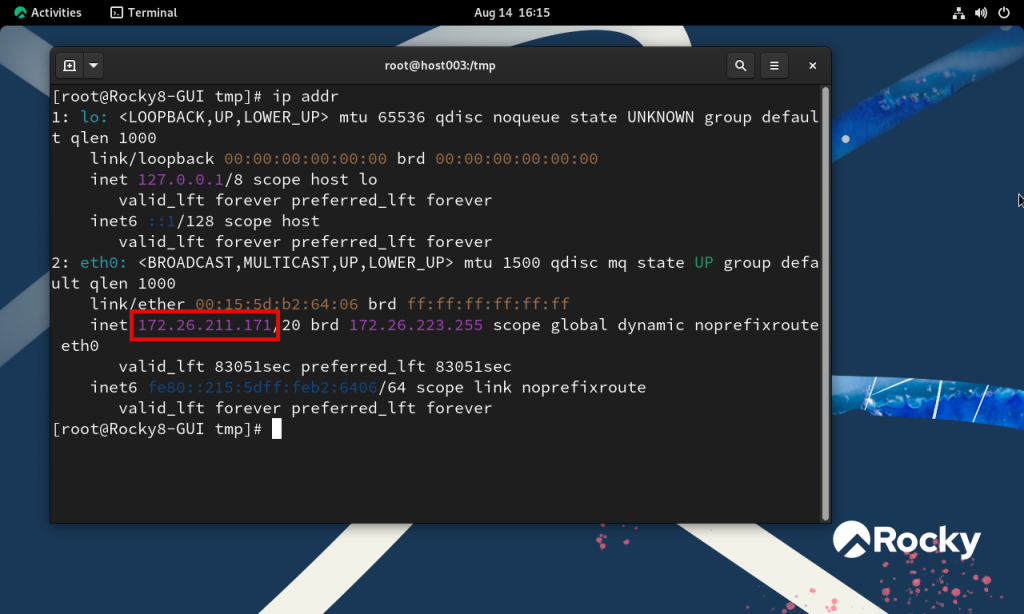
In Windows, use ipconfig:
ipconfig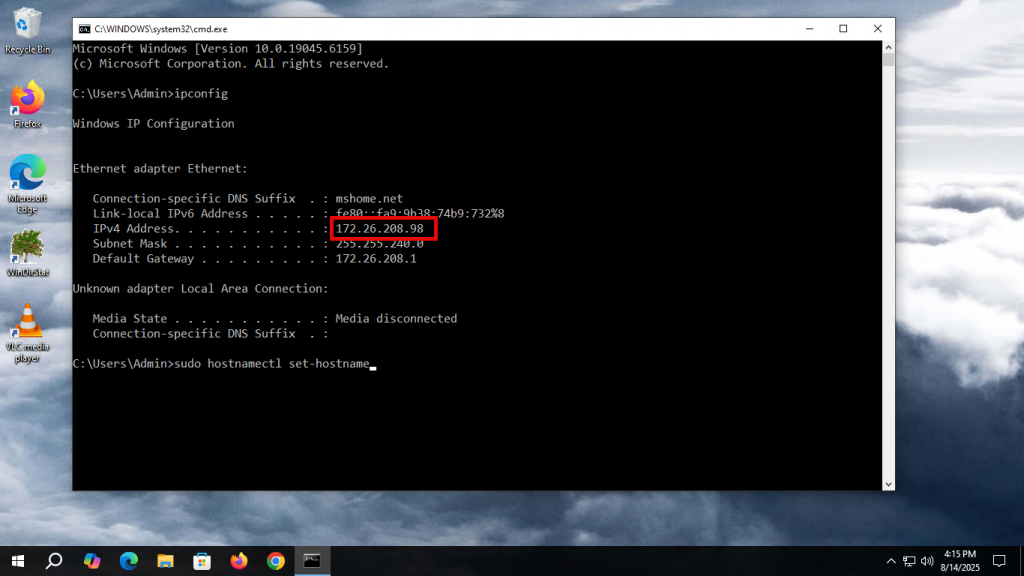
This is fine if you have one or two VMs. But what if you have several running, with multiple operating systems? A simpler solution is to get all of their IP addresses via PowerShell.
Get the IP addresses via PowerShell
Open PowerShell as an administrator and run:
Get-VM | Where-Object {$_.State -eq "Running"} | Get-VMNetworkAdapter | Select-Object VMName, IPAddressesThe command returns the name of each running VM and its IPv4 and IPv6 addresses.
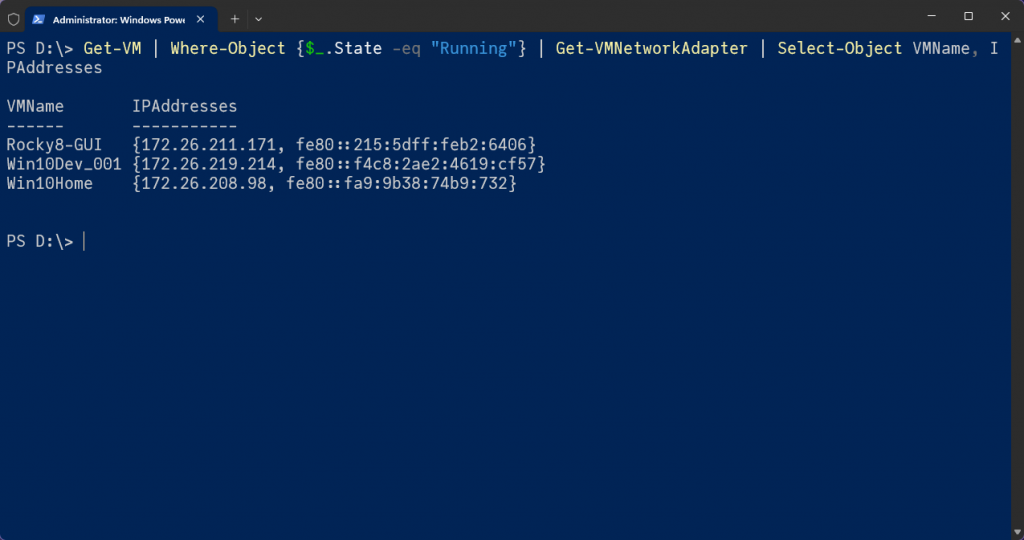
You can now work with those machines without logging in to each one.