While using SQL Server reporting services designer in Visual Studio, you may run into a situation where the Report Data tab disappears! Looking around, the Report Data tab is missing and no where to be found.
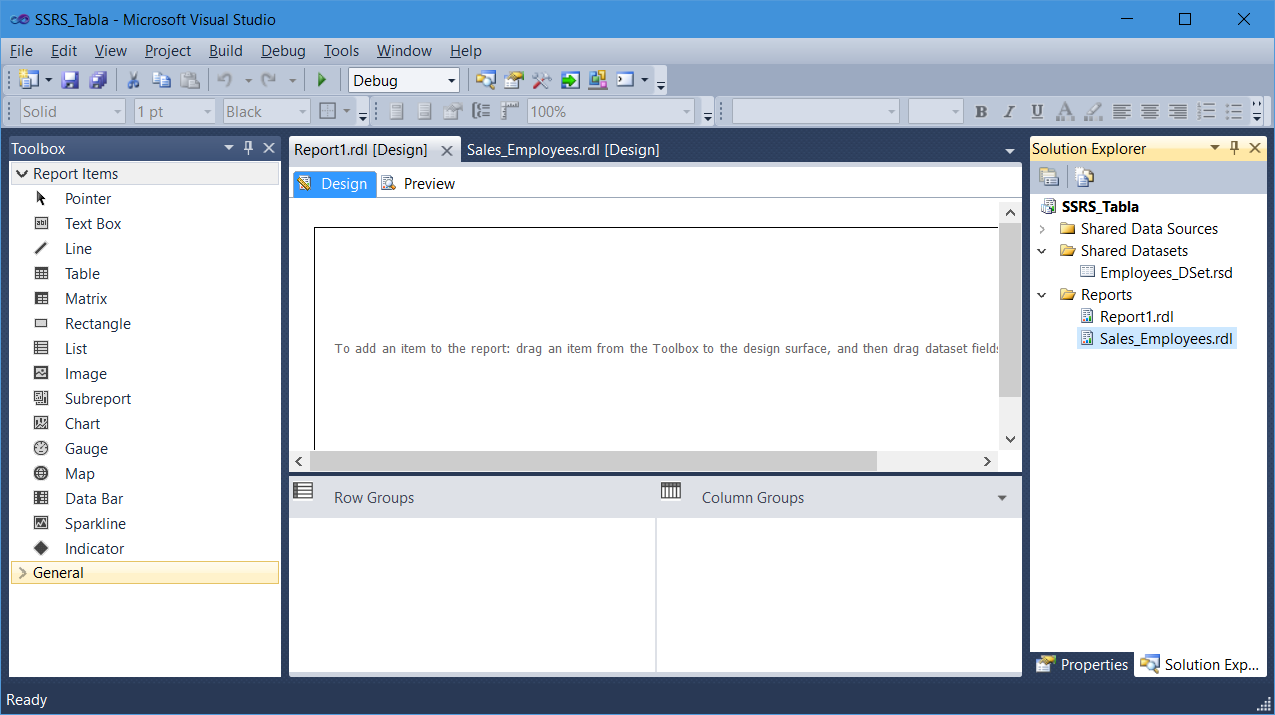
SSRS Report Data Tab Missing
Your first instinct is to look under View or View -> Other Windows, but you won’t find anything relating to report data there.
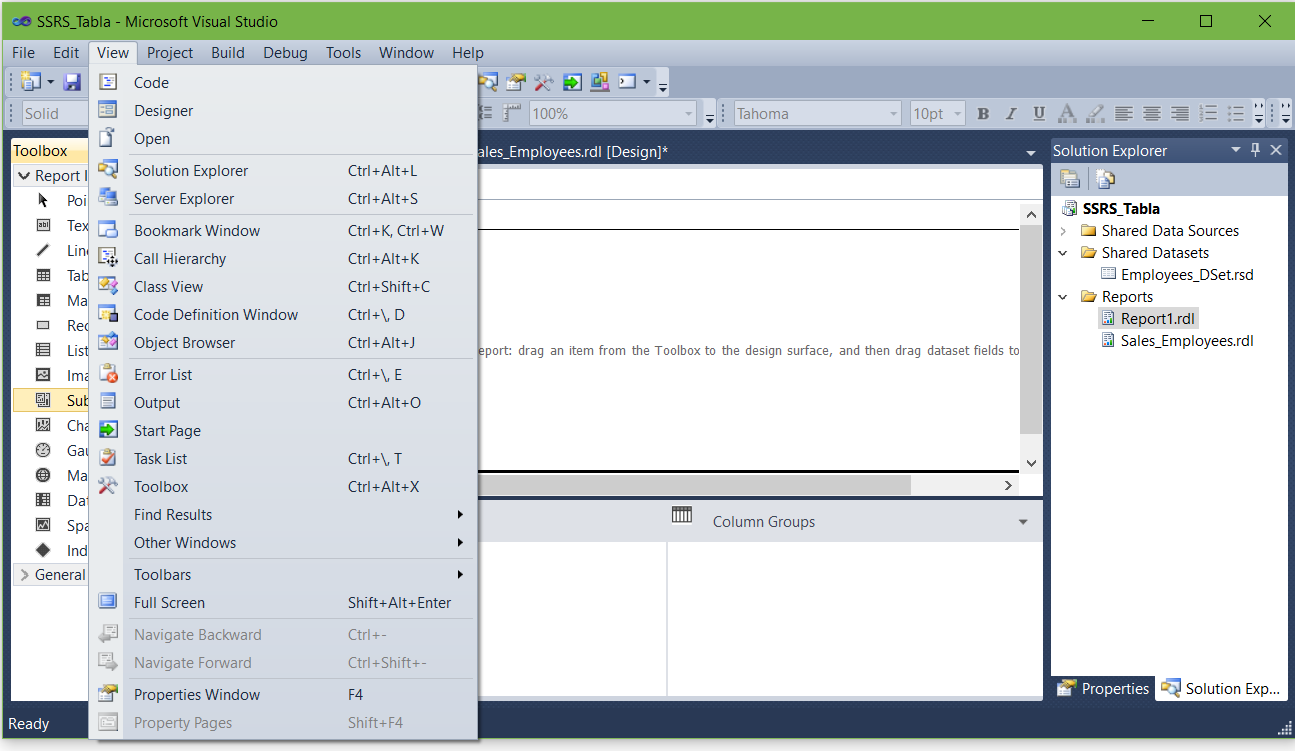
No Report Data in View Menu
Or will you?
First, bring up a report in the designer. Next, click on the report body, either on the background or a blank area.
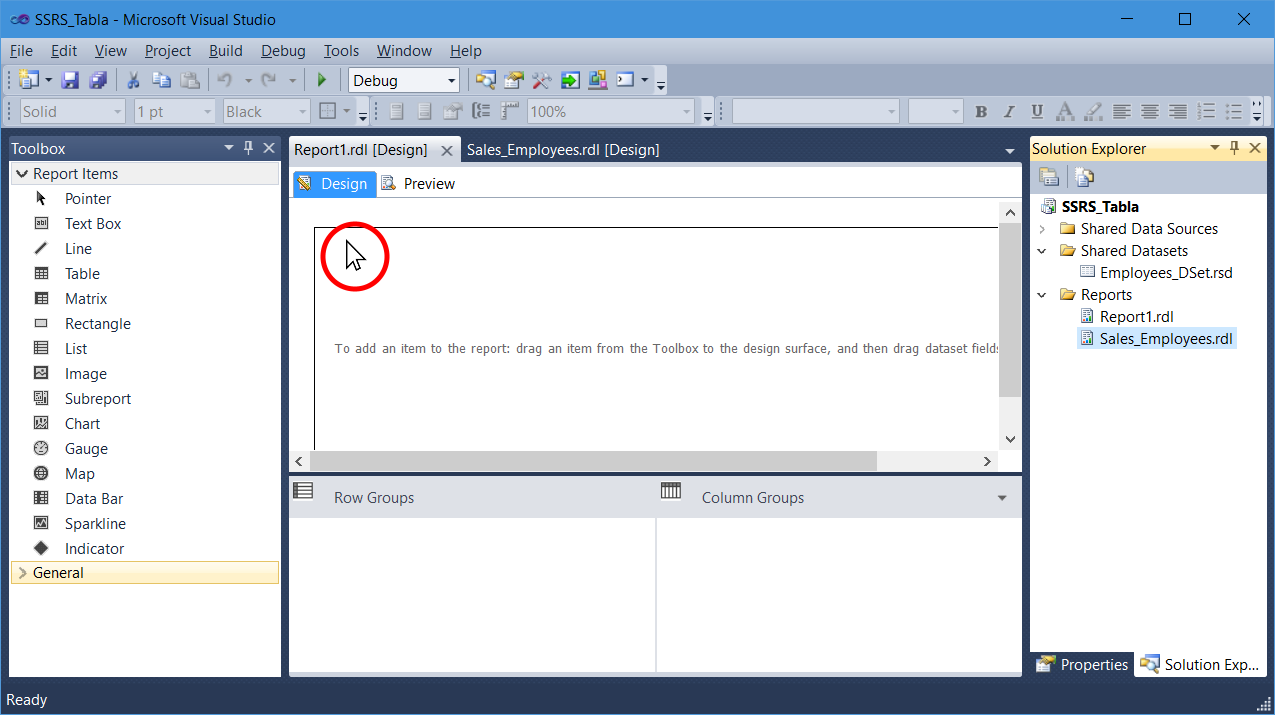
Click on the report body or background
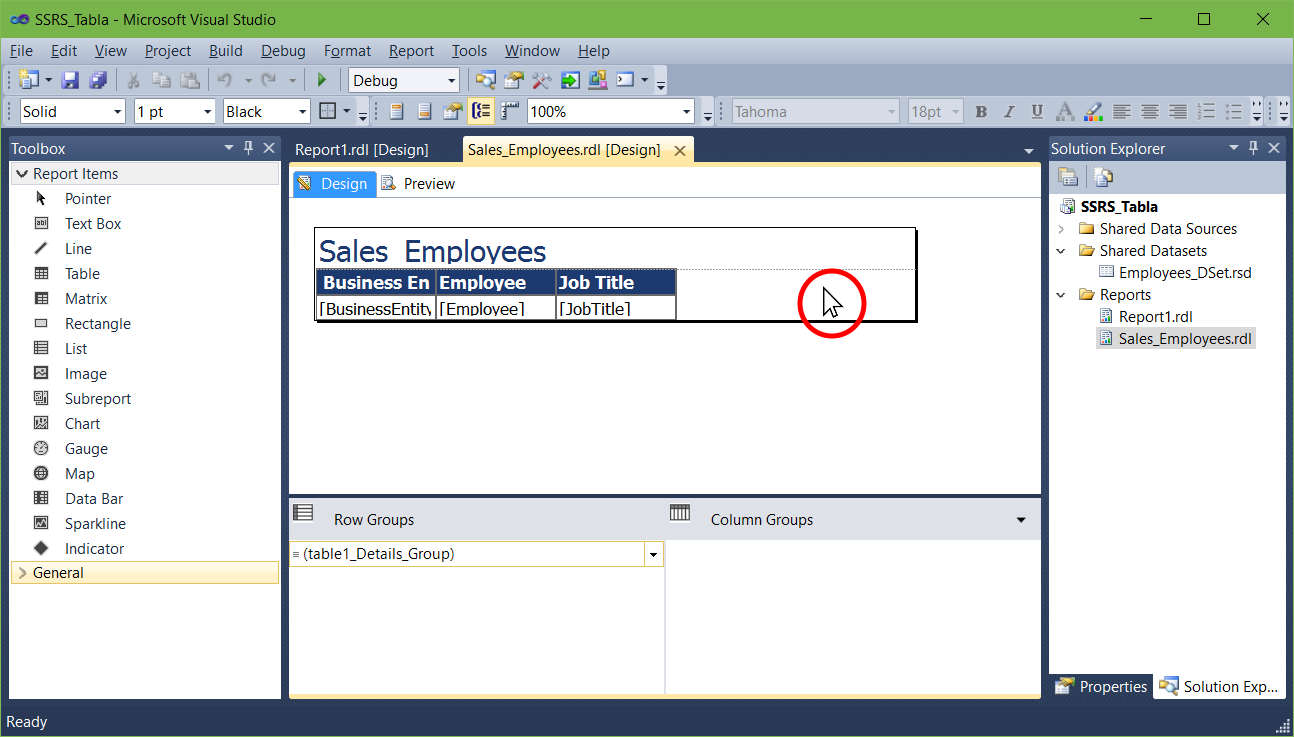
Click on the report body or background
Once you have clicked on the report body, you can recover the Report Data tab. You can recover the Report Data tab via View -> Report Data. Or, click Ctrl-Alt-D.
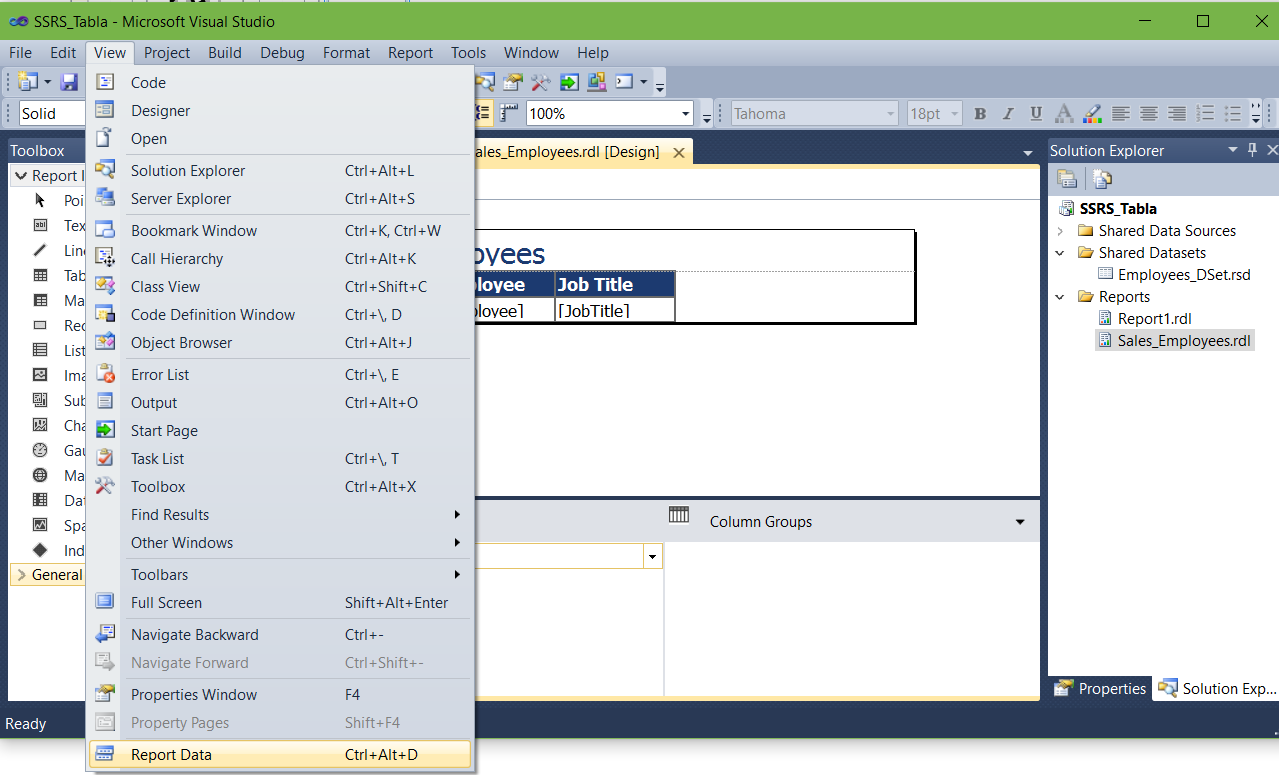
View – Report Data or Ctrl-Alt-D
And your Report Data Tab has returned.

Report Data Tab returns
Note, Ctrl-Alt-D will not work until you click on the body or background of the report designer. If you are not editing a report via the designer, Ctrl-Alt-D has no effect.